FEATURE: Drag Align
Coaches spend the majority of time creating practice plans, and a key component is a drill. How do we help our coaches draw drills faster while looking aligned and spaced? Enter Drag Align, a game-changer, and you will ask how you ever lived without it.
Using the Drag Align Feature
- On the Drills Page, select an icon.
- Click and drag across the sketchpad to add multiple aligned icons (do not release).
- You will notice a little snap when dragging at 45-degree increments.
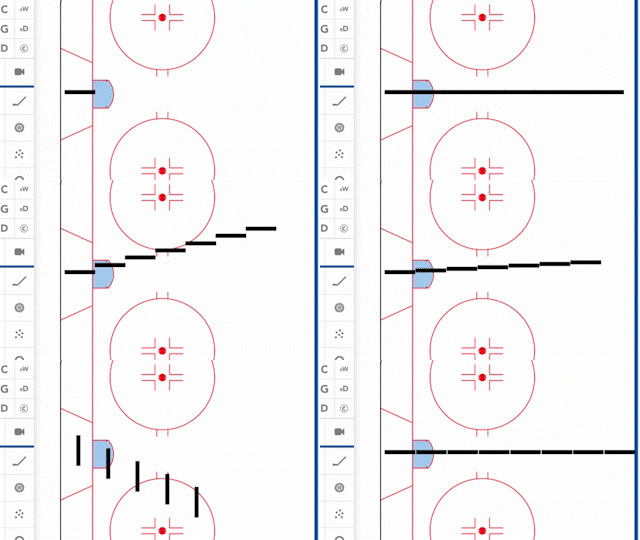
- Additional adjustments while drawing:
- Hold SHIFT: To snap line to ONLY 45-degree increments.
- Hold CONTROL: To disable the feature for free-flowing adjustments.
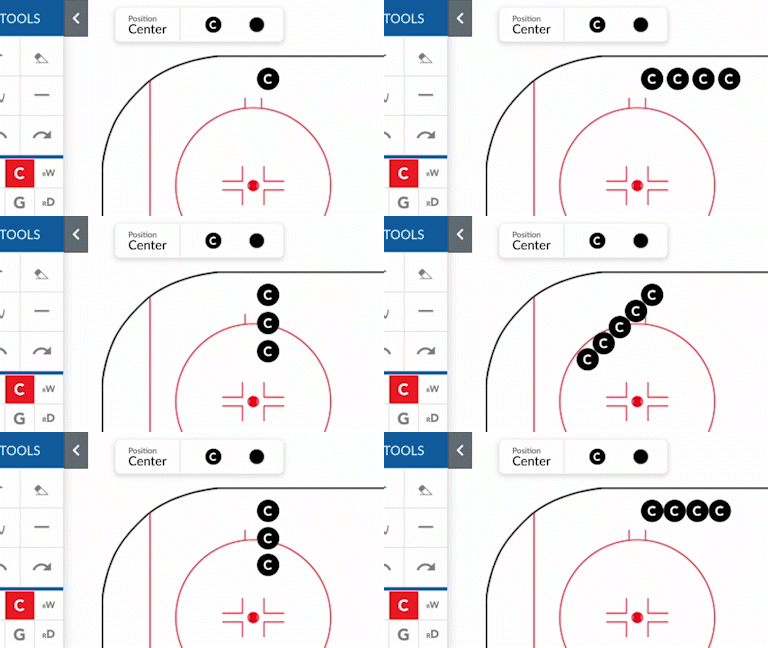
- Only want 3 icons spaced out?
- Drag to the number of icons wanted, then hold CONTROL to space out.
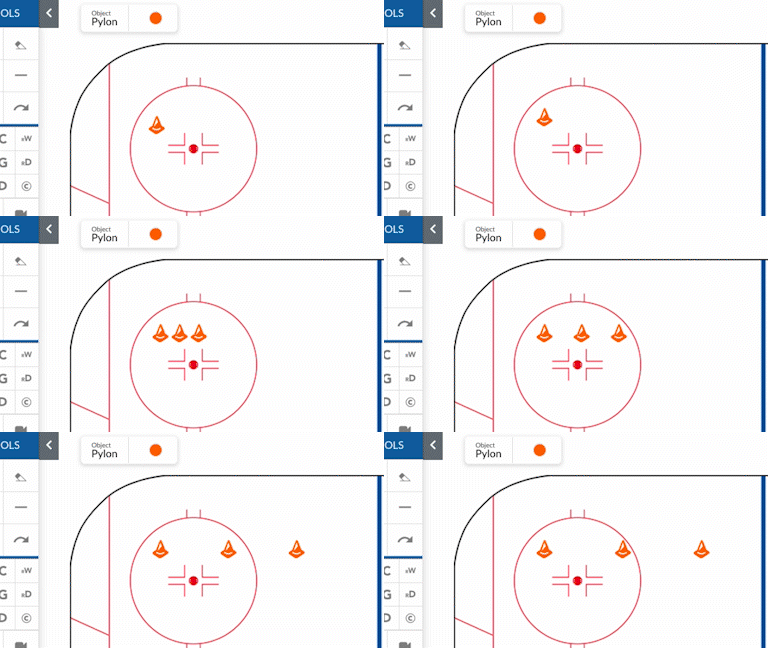
For different options for aligning your icons, use the H click to change the positioning.
- Click H for Horizontal
- Click H again for Vertical

Written by the CoachThem Team
Ditch the pen and paper! Sign up or log in to create professional digital drills in minutes.
Join CoachThem Rewards to earn money by referring other coaches and growing our coaching community!